




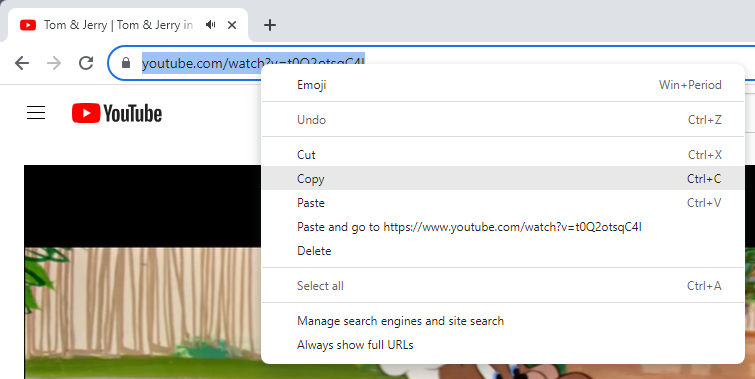
Step 1 Copy the YouTube video or playlist URL
iFunia YouTube Downloader for Windows User Guide
iFunia YouTube Downloader is an application that allows you to download videos and audio from YouTube and over 1000+ supported websites. It supports multiple formats (MP4, MP3, WebM) and high resolutions up to 8K, making it easy to watch content offline on any device. Learn how to download, install, and use iFunia Free YouTube Downloader for Windows to save videos and audio from YouTube and 1000+ websites in high quality, including 4K and 8K.
Download & Install
1. You can download the installation package of iFunia YouTube Downloader for Windows from here.
 Free Download Windows 10/11
2. Install iFunia YouTube Downloader with the downloaded package.
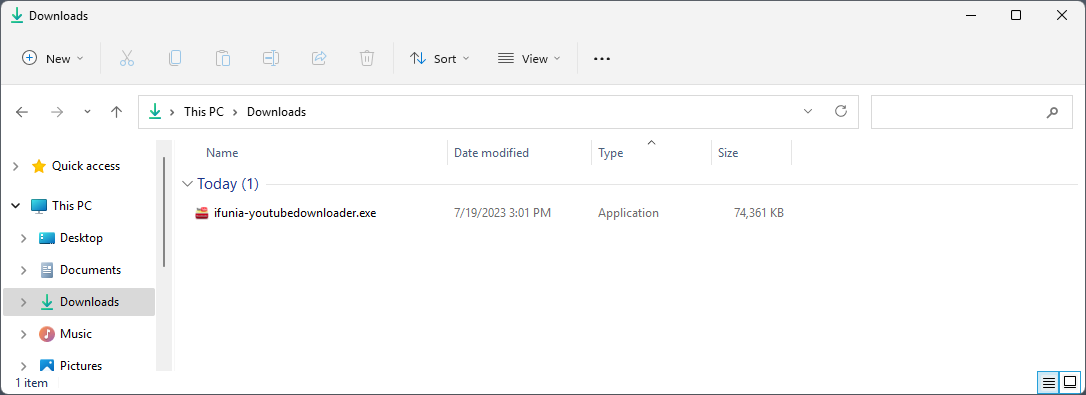
Double-click the .exe file to run it.
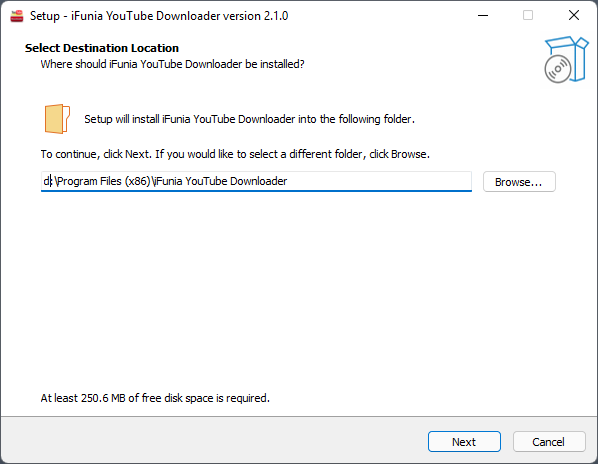
Select a folder to install the program (It is recommended to save it under D: drive instead of C: Drive)
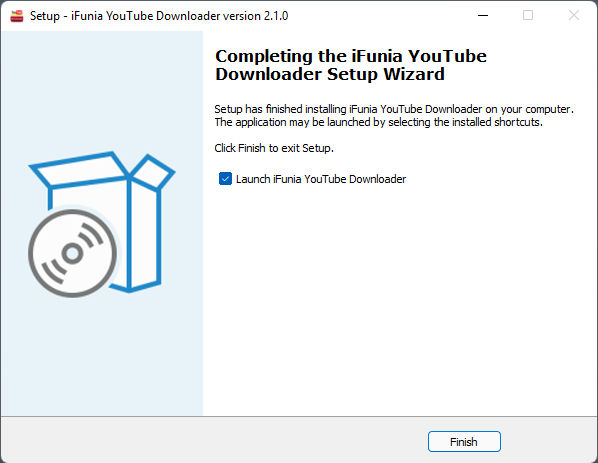
Click Next > Next > Install to continue the installation process, when the below window appears, it means that the program has been installed successfully.
Activation
After installing the program, you need to activate the program if you want to use the full version features.
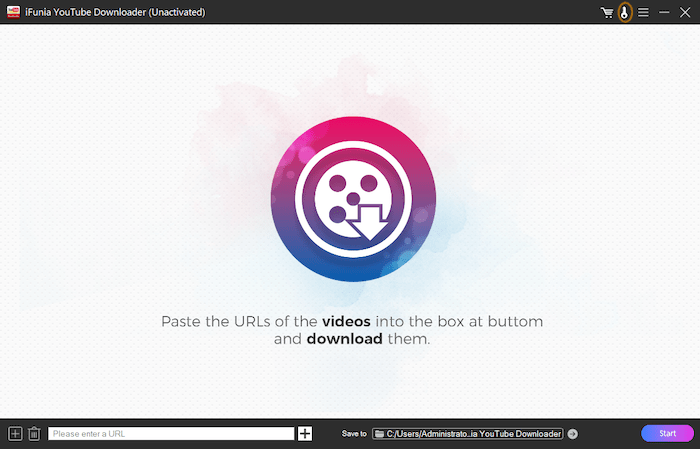
1. Find iFunia YouTube Downloader on your desktop or in the folder where you installed it, double click to run it, and then click the key icon at the right upper corner
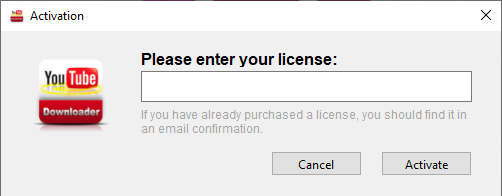
2. Copy-n-paste the license code into the popped-up window, click Activate.
Download Videos from YouTube
To download videos from online website, you will have to get the correct URL, then copy and paste the URL into iFunia, iFunia YouTube Downloader will help you to extract the video files from the URL.
Step 1 Copy Video URL
Step 2 Paste the link
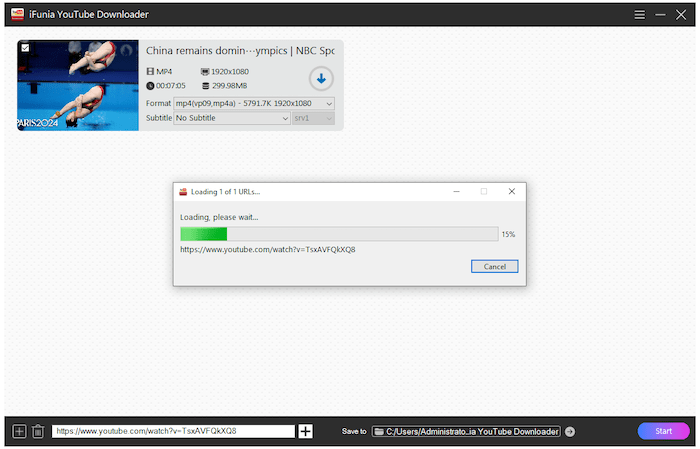
Past the link into the address box, press Enter on your keyboard or click  after the address box, iFunia YouTube Downloader will start to fetch the video information and display it in the interface.
Tips:
1. In addition to the URL of individual video, you are allowed to paste the URL of playlist to directly download the videos from a playlist.
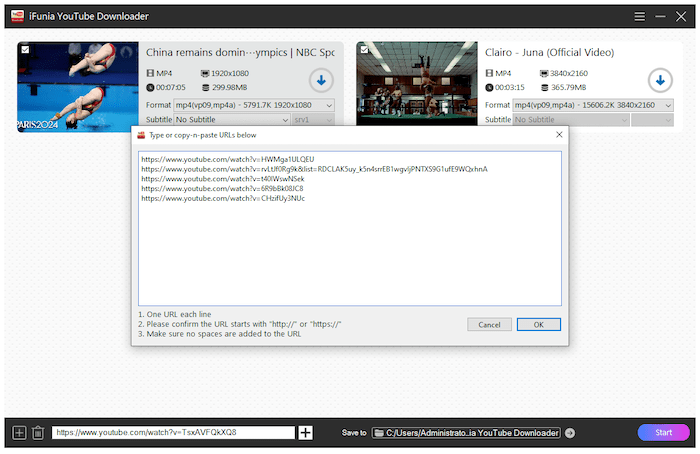
2. If you need to paste URLs in bulk, you can click  at the left lower corner of the main interface, and then paste the URLs in the following blank box. Please paste one URL per line, and you can switch to a new line by pressing Enter on your keyboard.
3. If the video that you wants to download requires login, please confirm your default browser has logged in the account before loading the video.
Step 3 Choose Format and Quality
Normally iFunia will auto select a proper video format with the highest quality by default, you can also click  to select another output format to download.
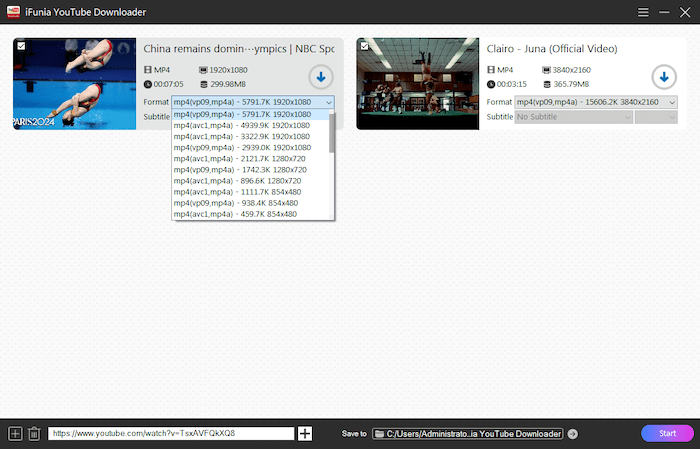
Step 4 Select a save location and start to download.
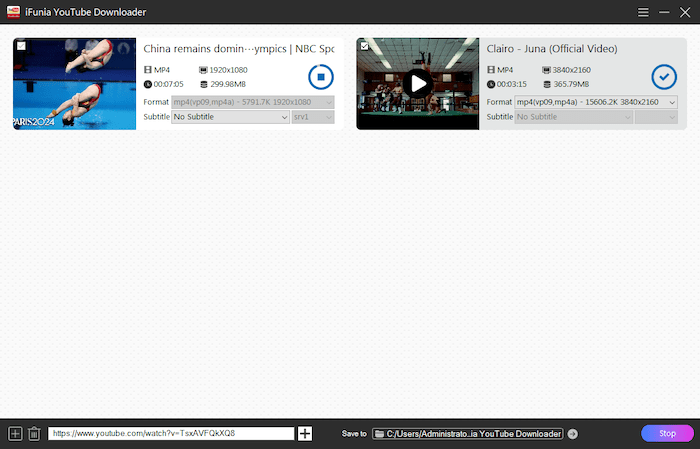
Select a save location with the "Save to" option and then click  to download a specific video or click
  to download all the videos at the same time.
When the download completes, it will display a after the video's thumbnail, you can also directly click  to access the downloaded videos.
Download Audio/Music from YouTube
If you only need the audio from a YouTube video, iFunia YouTube Downloader allows you to save it as an audio file without downloading the video. This is useful for downloading music, podcasts, interviews, lectures, and other audio content for offline listening.
Open YouTube in your browser, then copy the URL of the video, music video, podcast, or playlist you want to download.
Step 2 Paste the URL into iFunia YouTube Downloader
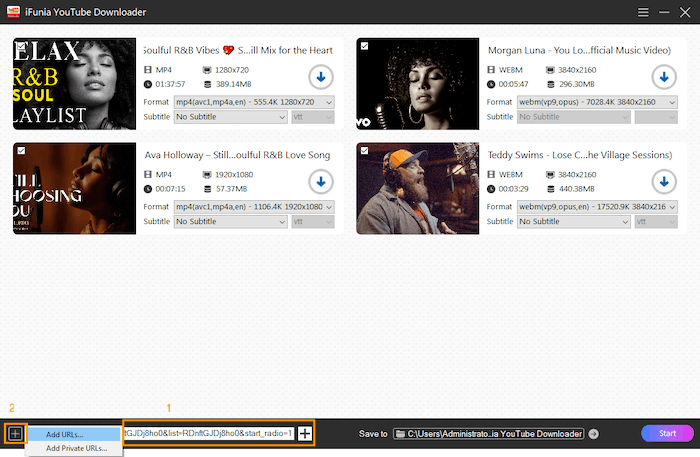
Paste the copied URL into the address box. Press Enter on your keyboard or click the button. The program will retrieve the available download options.
Tip: You can also paste multiple YouTube URLs at once by clicking > Add URLs. Paste one URL per line to download multiple audio files simultaneously.
Step 3 Select an audio format
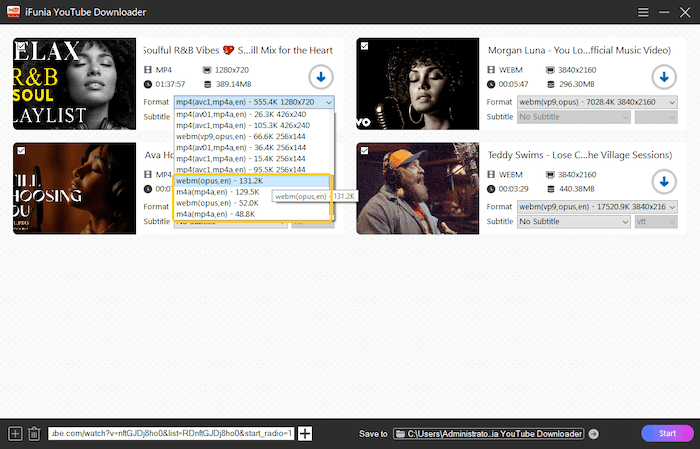
Click the Format drop-down menu and choose an audio-only format, such as MP3 or another available audio format.
If multiple audio quality options are available, select the bitrate that best meets your needs. Higher bitrates generally provide better sound quality but require more storage space.
Step 4 Choose the save location and download
Click "Save to" to select the destination folder.
Then click next to an individual item or click to download audio from all loaded URLs.
After the download finishes, click to quickly access the downloaded audio files.
Tips:
- Download an entire YouTube playlist as audio by simply pasting the playlist URL.
- Original audio quality depends on the source uploaded to YouTube.
- Downloading audio-only files is faster and uses less storage than downloading videos.
Download Subtitle Files from YouTube
Many YouTube videos include subtitles or closed captions (CC). If subtitles are available, iFunia YouTube Downloader can download them together with the video or save them as separate subtitle files for use in media players and video editing software.
Step 1 Copy the YouTube video URL
Navigate to the YouTube video that contains subtitles or closed captions, then copy its URL.
Paste the URL into the address box and press Enter. The program will analyze the video and display the available download options, including subtitle tracks if they are provided.
Click the Subtitle drop-down menu, select a subtitle language and subtitle format that you want to download.
Note: Subtitle availability depends on the original YouTube video. If a video does not provide subtitles, no subtitle options will be displayed.
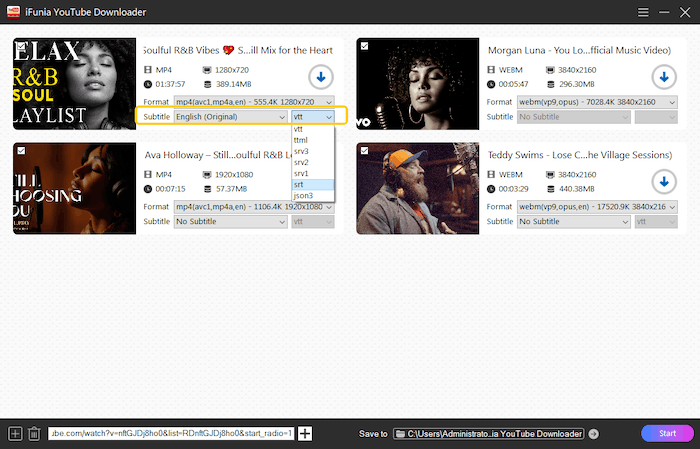
Choose your preferred save location. Click to save the video together with its subtitles.
When the download is complete, click the to open the destination folder and access the downloaded video files and subtitle files.
Update iFunia YouTube Downloader
We always suggest users to use the latest version of the program.
When you launch iFunia YouTube Downloader for Windows, iFunia will auto check for updates and prompts you to download the latest version package.
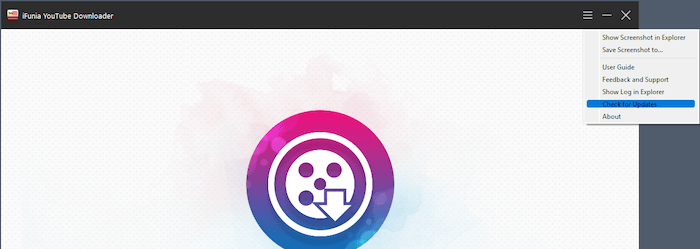
Also, you can click  > Check for Updates... to manually check for updates.
Disclaimer
The methods in this article are for personal use only. Before downloading, you must comply with copyright laws and obtain permission from the owner for protected content. The author is absolutely against the downloading of unauthorized video/audio files or using them for commercial gain.

Jessica Nielsen has worked in iFunia for 8 years, she is very familiar and professional with video parameters and iFunia’s programs, and can provide accurate and useful suggestions to iFunia users.
Comments (2)
Leave a Reply
Robert Vilag
I used to get videos from a site but now when I enter the url it only pulls 30 seconds of a 3-5 minute video. Is this an Ifunia thing or the site blocking it?
Jessica
Hello Robert, thank you for trying our video downloader, don't worry, we'll do our best to solve this with you. If possible, could you please send us the URL, so we can figure out if it's the software's problem or the website's problem. If it's ours, we'll solve it. According to other customers' feedback, it's very likely that the site has restrictions.