iFunia YouTube Download for Mac is a software can download videos and audios from online video websites for your offline watch. It supports downloading videos from 1000+ websites, such as YouTube, Vimeo, Instagram, Dailymotion, etc. Also, it supports downloading playlist to batch download multiple videos/audios simutaneously. In this guide, we will show you the detailed steps how to download videos/audios from online websites.
Download & Install
1. You can download the installation package of iFunia YouTube Downloser for Mac from here.
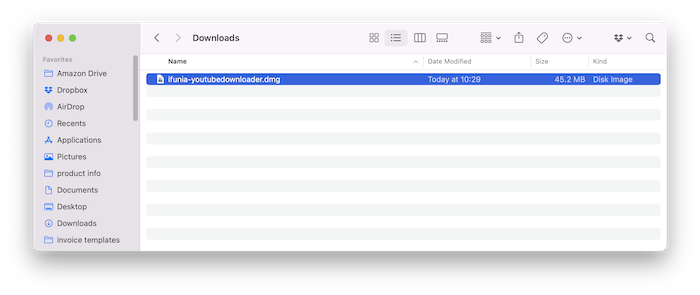
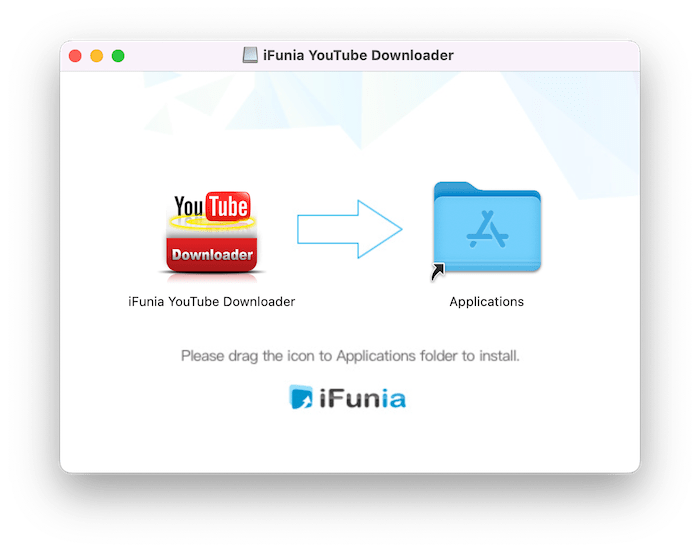
2. Install iFunia YouTube Downloader for Mac with the downloaded package.
Double-click the dmg file.
Drag the iFunia YouTube Downloader icon to Applications folder.
Activation
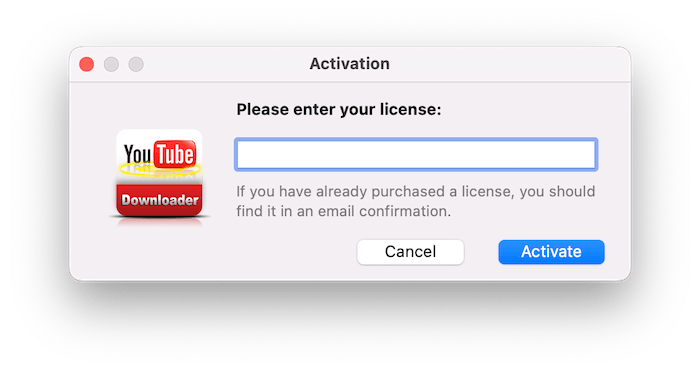
After installing the program, you need to activate the program if you want to use the full version features.
1. Go to Lauchpad or Applications folder, double click iFunia YouTube Downloader to run the program, and then click the key icon at the top right corner.
2. Copy-n-paste the license code into the popped-up window, click "Activate".
Download Videos from YouTube
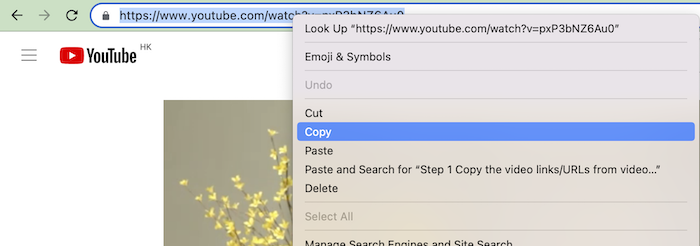
Step 1 Copy the video link/URL from video website.
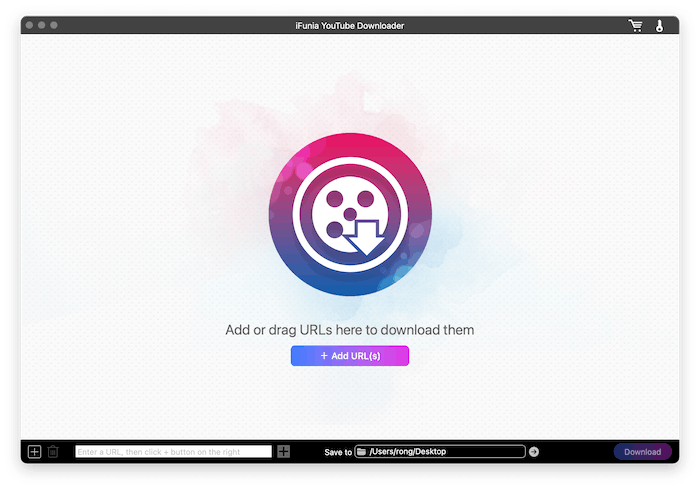
Step 2 Paste the link/URL into the address box, press Enter on your keyboard or click after the address box, iFunia YouTube Downloader will start to fetch the video information and display it in the interface.
Tips:
1. In addition to the URL of individual video, you are allowed to paste the URL of playlist to directly download the videos from a playlist.
2. If you need to paste URLs in bulk, you can click or , and then paste the URLs in the following blank box. Please paste one URL per line, and you can switch to a new line by pressing Option+Enter.
Step 3 Select an output format you'd like to download.
Normally iFunia will help you to auto select a proper video format with the highest quality, you can also click to select another output format to download.
Note: Apple software is not compatible with Mp4(av01), so if you want to play the downloaded video files with Apple software, you are suggested to select the output format as Mp4(avc1) instead of Mp4(av01).
Step 4 Download the YouTube videos
Click "Save to" to select a location to save the downloaded videos and click to start downloading all the video files with a click. You can also click after a specific video file to download this video only.
When the download completes, you can directly click after a video file to fast locate this video file.
Download Music/Audio from YouTube
Need the audio instead of the full video? iFunia Free YouTube Downloader lets you extract audio from YouTube videos and save it in a compatible format for offline listening. This is ideal for podcasts, interviews, lectures, and royalty-free music that you have permission to download.
Step 1 Copy the YouTube Video URL
Open YouTube in your web browser, find the video containing the audio or music you want, and copy its URL from the address bar.
Step 2 Paste the URL into the Program
Launch iFunia YouTube Downloader, paste the copied link into the URL field, and click (or press Enter).
You can also click and paste the URLs in the following window, and click OK. The program will retrieve the available download options.
Step 3 Select an Audio Format
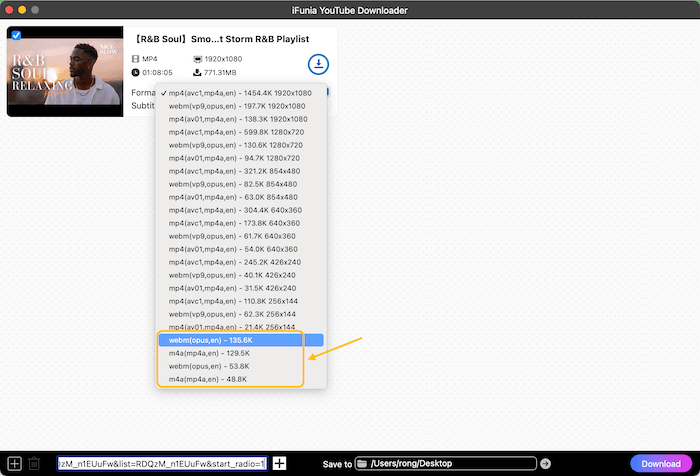
After the video has been analyzed, choose an audio-only format from the available options.
Depending on the source video, you may see formats such as:
MP3 – Best for music playback and compatibility with most devices.
M4A – Preserves the original audio quality when available.
WebM Audio – Suitable for users who prefer the original web audio format.
Choose the audio quality or bitrate that best fits your needs, if multiple options are available.
Step 4 Choose an Output Folder
Browse to select where you want to save the downloaded audio file.
Step 5 Start Downloading
Click to begin extracting and saving the audio. Once the download is complete, click to locate the file on your computer.
Download Subtitle Files from YouTube
Besides downloading videos and audio, iFunia Free YouTube Downloader can also download available subtitle files from YouTube videos. Saving subtitles is useful for watching videos offline, language learning, creating accessible content, or keeping transcripts for future reference.
Step 1 Copy the YouTube Video URL
Open YouTube and navigate to the video whose subtitles you want to download. Copy the video URL from your browser's address bar.
Step 2 Paste the URL into iFunia Free YouTube Downloader
Launch the program, paste the copied URL into the input box, and click (or press Enter). The software will retrieve the video's available download options, including subtitles if they are available.
Step 3 Select the Subtitle Language and Subtitle Format
After the analysis is complete, you can select subtitle language and format with the Subtitle section.
If multiple subtitle tracks are available, choose your preferred language. Select the subtitle format supported by the software. Common subtitle formats include:
SRT (.srt) – The most widely supported subtitle format for media players and video editing software.
VTT (.vtt) – Commonly used for web video playback and HTML5 videos.
Step 4 Download the Subtitle File
Choose an output folder if needed, then click Once the download is complete, open the destination folder to access the downloaded video file and subtitle file.
Update iFunia YouTube Downloader
We always suggest users to use the latest version of the program.
When you launch iFunia YouTube Downloader for Mac, iFunia will auto check for updates and prompts you to download the latest version package.
Also, you can click iFunia YouTube Downloader > Check for Updates... on the top menu bar to manually check for updates.
Disclaimer
The methods in this article are for personal use only. Before downloading, you must comply with copyright laws and obtain permission from the owner for protected content. The author is absolutely against the downloading of unauthorized video/audio files or using them for commercial gain.
Jessica Nielsen has worked in iFunia for 8 years, she is very familiar and professional with video parameters and iFunia’s programs, and can provide accurate and useful suggestions to iFunia users.
Comments (4)Leave a Reply
SeongHo
Could you make favorite(or default to choose) output format ? there is too many options to select everytime every downloads.
1 years agoReply
Jessica
Hello SeongHo, thanks for trying iFunia YouTube Downloader and sharing your valuable feedback with us. We greatly appreciate your insights, and we wholeheartedly agree with your suggestions which align perfectly with our goals to enhance user experience and functionality. We'll add that function in the future version. If you have further thoughts or questions, please don’t hesitate to reach out.
1 years ago
Ronald Chouinard
I always get a error message after pasting a ULR link for Youtube.
Your program does not recognis the link
//youtu.be/R8MZbl-GRdY
1 years agoReply
Jessica
Hello Ronald, thanks for your trying iFunia YouTube Downloader. The reason why you got error message while pasting the YouTube URL into the program is that the link format is not right.
For your link //youtu.be/R8MZbl-GRdY, is it the song video Rest On Us? Try again with the complete URL: https://www.youtube.com/watch?v=R8MZbl-GRdY








 after the address box, iFunia YouTube Downloader will start to fetch the video information and display it in the interface.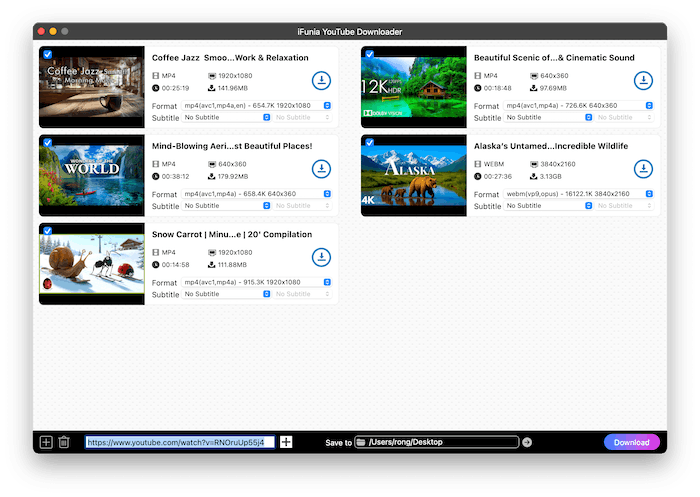
 , and then paste the URLs in the following blank box. Please paste one URL per line, and you can switch to a new line by pressing Option+Enter.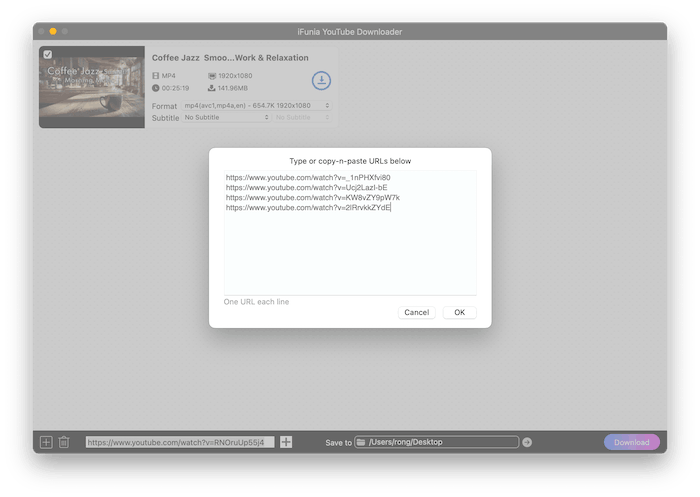
 to select another output format to download.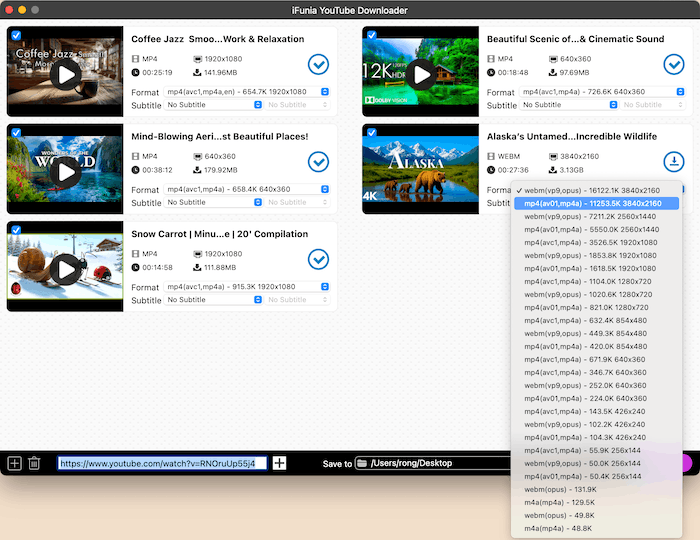
 after a specific video file to download this video only.
  after a video file to fast locate this video file.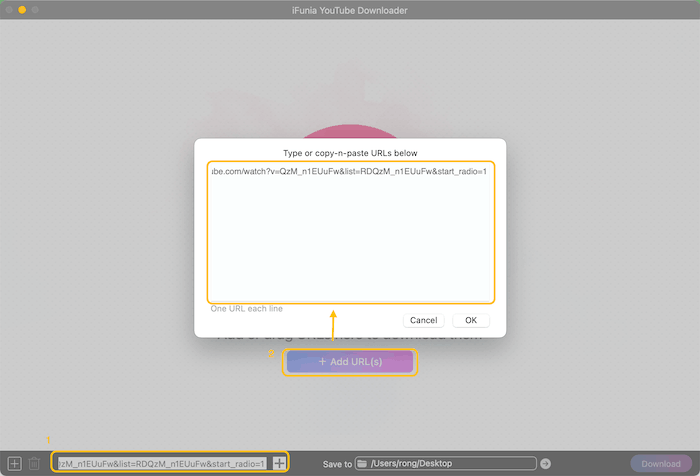
 (or press Enter). The software will retrieve the video's available download options, including subtitles if they are available.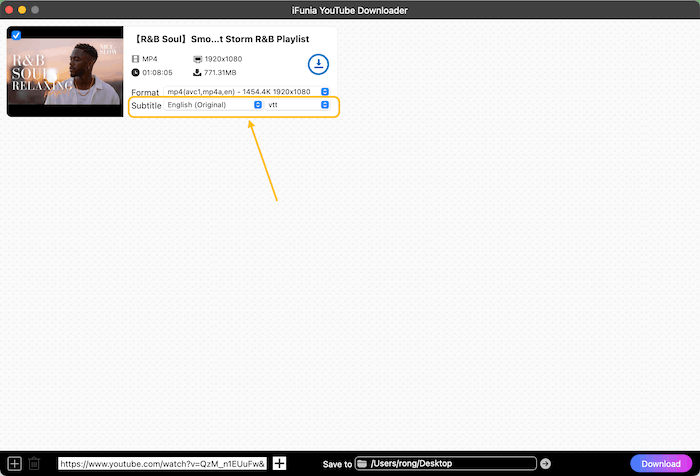
 Once the download is complete, open the destination folder to access the downloaded video file and subtitle file.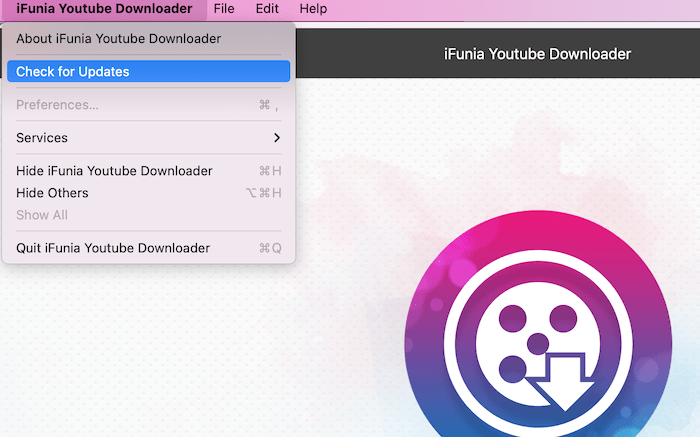
SeongHo
Could you make favorite(or default to choose) output format ? there is too many options to select everytime every downloads.
Jessica
Hello SeongHo, thanks for trying iFunia YouTube Downloader and sharing your valuable feedback with us. We greatly appreciate your insights, and we wholeheartedly agree with your suggestions which align perfectly with our goals to enhance user experience and functionality. We'll add that function in the future version. If you have further thoughts or questions, please don’t hesitate to reach out.
Ronald Chouinard
I always get a error message after pasting a ULR link for Youtube. Your program does not recognis the link //youtu.be/R8MZbl-GRdY
Jessica
Hello Ronald, thanks for your trying iFunia YouTube Downloader. The reason why you got error message while pasting the YouTube URL into the program is that the link format is not right. For your link //youtu.be/R8MZbl-GRdY, is it the song video Rest On Us? Try again with the complete URL: https://www.youtube.com/watch?v=R8MZbl-GRdY