


How to Download TNAFlix Videos in MP4 (2026 Updated Guide)




If you right-click on a TNAFlix video thumbnail and select Save Video As, you'll only download a 6-second preview clip. TNAFlix is a popular adult streaming site that provides free HD videos (no login required), but it intentionally restricts downloads in this way.
In 2026, things become even more difficult, as modern streaming systems like HLS split videos into encrypted segments, they now use expiring, session-based links, which makes traditional download methods fail.
Now the most reliable way to download TNAFlix videos in 2026 is using a desktop video downloader that can capture streaming (HLS) media instead of direct MP4 links. In this guide we’ll explain four working methods to download TNAFlix videos step by step, along with a troubleshooting section to fix common issues when downloads don’t work.
 iFunia YouTube Downloader
Download TNAFlix Videos in MP4
- Video Downloader - YouTube, TikTok, Facebook, Vimeo, Instagram, and 10000+ websites
- Save both short and long YouTube videos
- Download in multiple video qualities: 1080p, 4k, 8k, etc.
- Save as popular video and audio formats, MP4, MP3, WebM, M4A, MOV, etc.
- Batch & Playlists - Download multiple videos or entire playlists
- Audio Extraction - Extract audio in MP3, M4A, or Opus format
- Subtitle Support - Download video with subtitles
- Completely Ad-Free experience
- Fully compatible with Windows, Mac
 Free Download Windows 10 or later
 Free Download macOS 10.15 or later
Why TNAFlix Videos Are Hard to Download Now
In my 2026 TNAFlix video downloading test, one consistent issue is that TNAFlix has changed how it handles video streams. Many pages that previously exposed direct MP4 files now rely primarily on segmented streaming formats, which means traditional “save as” methods often fail or only capture short preview clips instead of full videos.
Another key issue is that video links are often time-limited and session-based. These URLs can expire quickly during extraction, especially on popular videos, causing downloads to fail, stop early, or result in corrupted files.
Method 1 (Best): Use a Desktop Video Downloader - iFunia YouTube Downloader
The most reliable way to download TNAFlix videos in MP4 format in 2026 is by using a desktop video downloader that supports streaming formats (HLS/m3u8), because TNAFlix does not provide direct MP4 downloads for full videos.
iFunia YouTube Downloader is a simeple yet versatile program that lets you save videos from 1000+ platforms, including TNAFlix, XVideos, Redtube, xHamster, Redgifs, YouTube, X, Instagram, and so on.
The app handles video efficiently, supporting resolutions up to 8K from compatible sources, but note that TNAFlix.com usually offers up to 1080p. It also supports downloading private videos and employs multithreading to accelerate batch & playlist downloads.
Free Download macOS 10.13 or later Free Download Windows 10 or later
Why it works best
- Detect hidden streaming sources automatically - Just paste the link workflow
- Converts HLS streams into MP4 files automatically
- Support multiple resolutions (typically 720p-4K depending on source)
- Maintain stability even when other methods fail
Known limitations
- Downloads may fail if the session token expires during processing
- Private or restricted videos may not be detected
Step-by-Step Guide
- Open iFunia TNAFlix downloader on your Mac or Windows.
- Copy the TNAFlix video URL from your browser
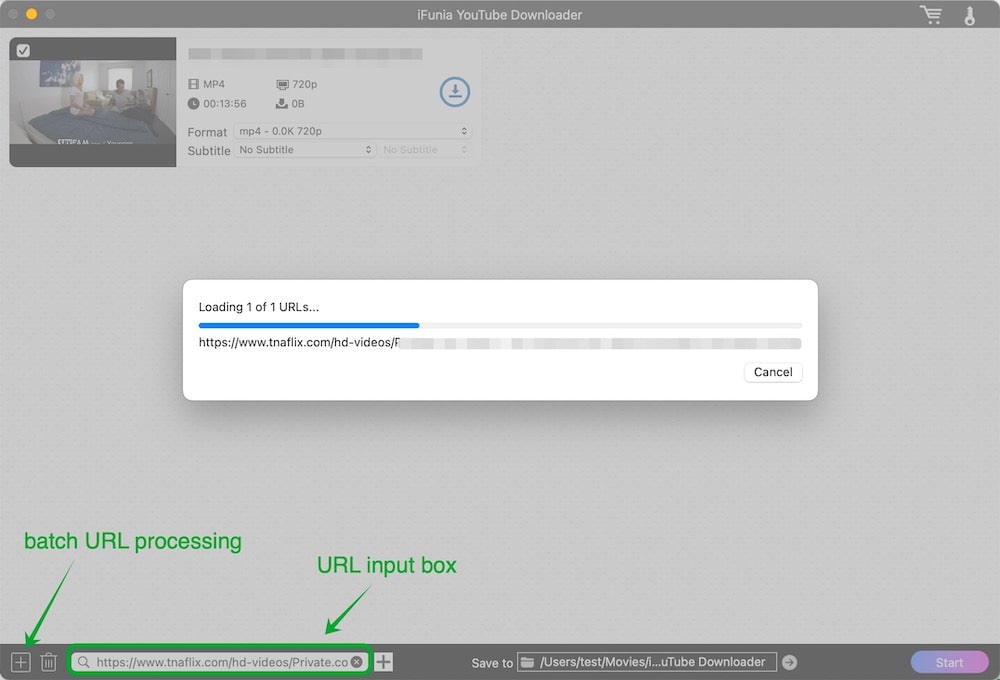
- 3. Paste the link into the downloader interface and Click the + icon on the right to start parsing the video.
![]()
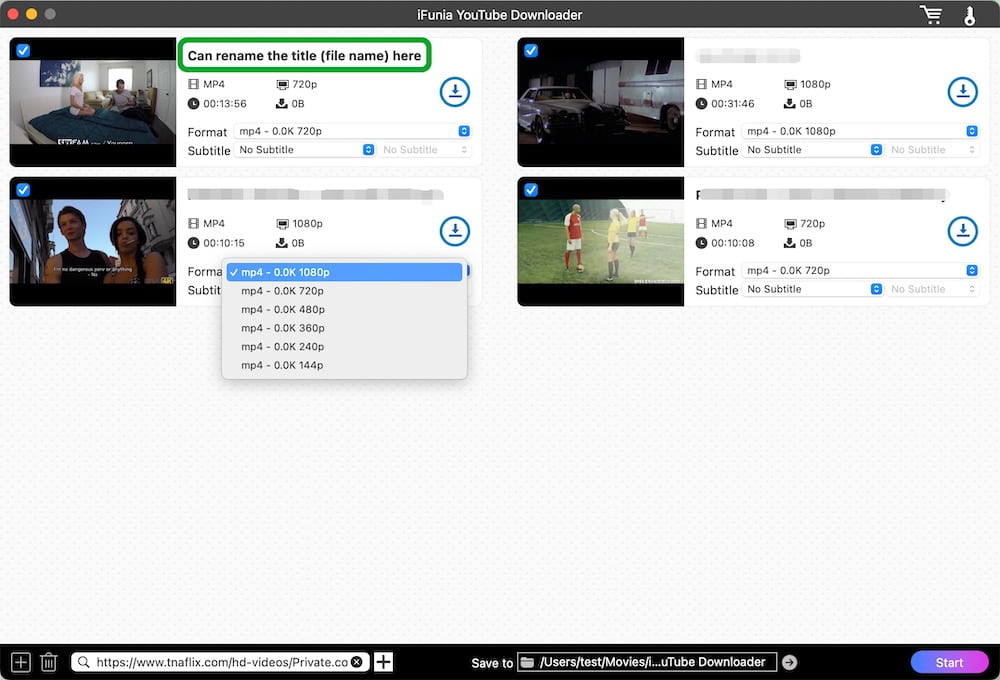
- Wait for stream detection to complete. Once parsing is complete, pick a resolution for the video, with the highest quality as the default. For the output format let’s set it as MP4.
![]()
- Select Save to folder from local or create a new one.
- Start downloading TNAFlix videos in MP4 with sound.
More tips and tricks:
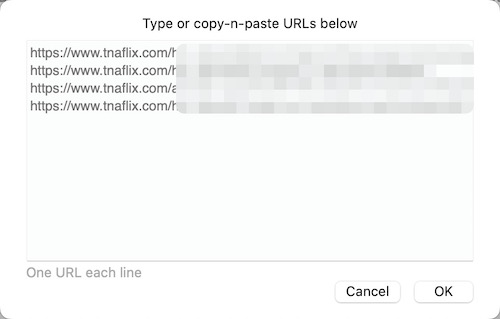
- If you want to parse multiple links at once, you can click the + icon on the left to open a dialog to enter any number of TNAFlix video URLs.
![]()
- Don’t need some videos after parsing many links or a playlist? Just uncheck them or right-click and choose Delete.
- You can click on the video title to edit it, and the downloaded video will be named that way.
- Once your video is downloaded, you’ll see a play button on the thumbnail, click it to play the video directly in iFunia.
Method 2: Online Video Downloaders (Fast but Unstable)
Online tools offer convenience because they require no installation, but they are less stable with modern streaming formats. It's also available to mobile users.
Performance comparison
- FetchFile - Faster processing but lower success rate on restricted videos
- Locoloader - Slightly more reliable but slower response times
Limitations
- Cannot process private videos
- Fail frequently on age-restricted content
- Fail on long videos
- Often blocked by expired streaming tokens
- May return no downloadable file even when parsing succeeds
#1 FetchFile
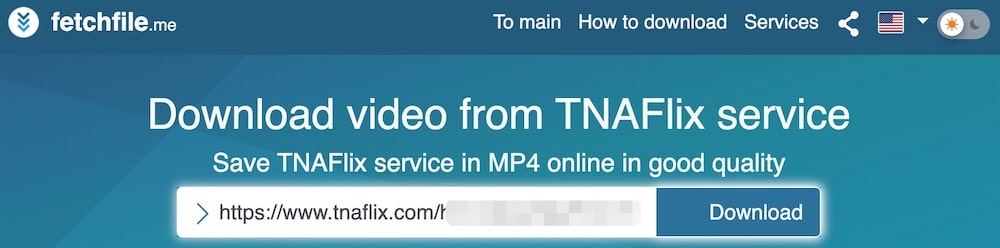
FetchFile is a good online TNAFlix video downloader that can save 1080p videos as MP4s for free. It's very easy to use. But it can’t successfully download videos from some common websites such as YouTube, and it doesn’t display the resolution, making it unclear which output option to choose.
- Go to fetchfile.me website.
- Copy the video link from TNAFlix and insert it into the blank box in the online tool. The video should load automatically. If not, click Download next to the box.
- Select an MP4 option, right-click Download, and then select Save Link As to download.
Tip: Usually, the last option is in 1080p. Also, you can check the default file name before saving, which will indicate the resolution.
#2 Locoloader
Locoloader can also download TNAFlix videos in HD. Unlike other online sites cluttered with ads, Locoloader's page is relatively clean. Free users can download two videos every six hours. Unlocking the service requires a monthly fee of $15, which I find a bit pricey.
- Visit locoloader.com in your brower.
- Enter the video link, Locoloader will start analyzing and extracting the video information.
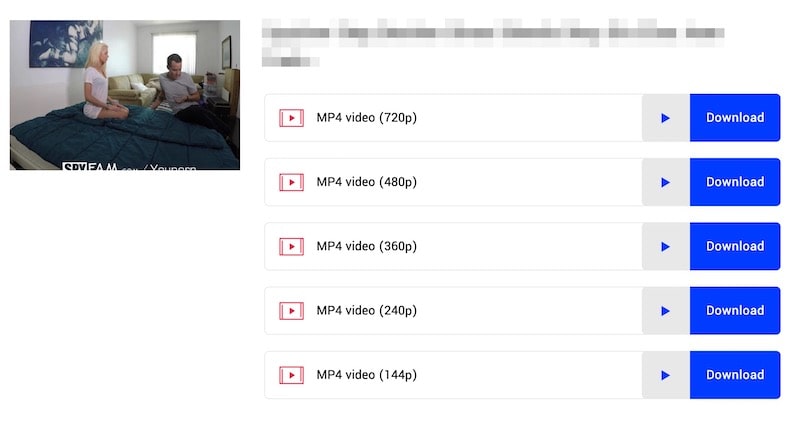
- Similarly, right-click the Download button next to the desired resolution and choose Save Link As to download a single TNAFlix file to MP4.
Method 3: Browser Extensions (Convenient but Inconsistent)
Most browser extensions are also free. They are equivalent to adding a download button directly to the video page, when you play the video it will attempt to detect video streams directly from the active page. However, extension stores, especially the Chrome web store, are strictly managed, and extensions related to video downloads can be removed at any time.
Strengths
- One-click downloads
- No need to copy/paste URLs
- Easy for beginners
Limitations
- Fail on dynamically loaded players
- Inconsistent detection of streaming formats
- May download just partial of the video and sometimes just download audio instead.
Performance comparison
- CocoCut performs better with HLS stream detection but requires manual quality selection
- Video Downloader Prime is easier to use but fail on many steams which need user to active first.
#1 Video Downloader Prime
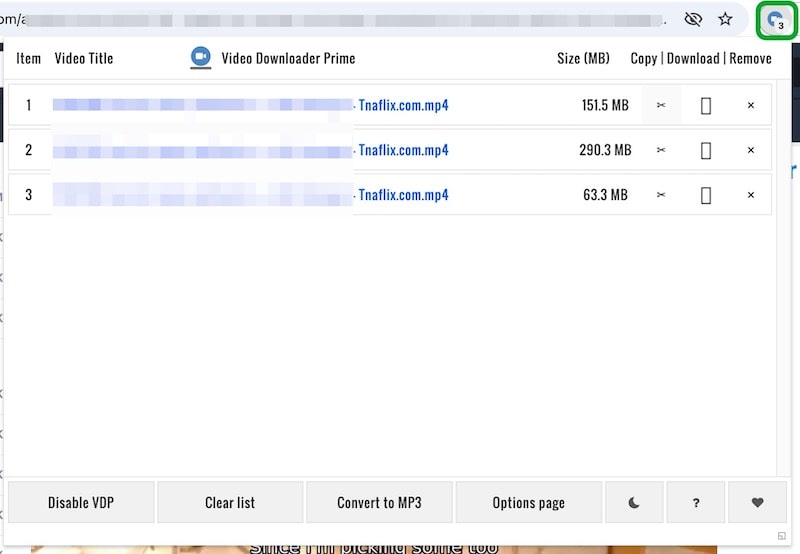
Video Downloader Prime can quickly detect videos playing on TNAFlix and download them with the correct name. It doesn’t support YouTube and M3U8 videos. You can use it on Chrome, Firefox, and Opera browsers.
- Find browser icons (quite small) on page https://mybrowseraddon.com/download-helper.html, choose the browser you are using to access the extension store.
- Install Video Downloader Prime and pin it to the upper-right corner of your browser.
- Head to TNAFlix.com and open a video.
- Switch to resolution you want to download in, like 1080p if that's what you need. Then, play the video.
- Once the extension detects an available video file, click on its icon and then click on the download icon in the pop-up dashboard.
![]()
#2 CocoCut
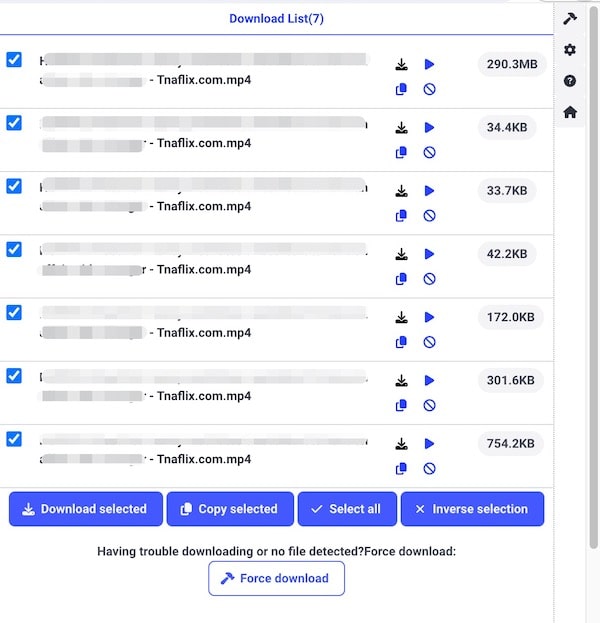
CocoCut is another effective extension for downloading TNAFlix videos. It detects all the resolutions available for a video and displays them in a long list. You can save individual videos at a specific resolution, or download the same TNAFlix video in different resolutions at once. It works on Chrome and Edge.
- Visit the page https://cococut.net/, and go to install the extension for Chrome or Edge.
- Play the TNAFlix video you want to save and wait for CocoCut to detect it.
- Once detected, CocoCut icon will show a number. Now, click the icon.
- Select an MP4 file in the panel. Note: You need to click the preview icon to check the file resolution. To save in the highest quality, just go for the biggest size option.
- Download any TNAFlix video in MP4 format.
![]()
Method 4: Using Developer Tools (Advanced Method)
The browser’s built-in DevTools can be used to manually locate video streams. This method is recommended for users who just need to download an individual video from TNAFlix. It's free, safe, and needs no additional tools.
How to extract video streams
- Open the TNAFlix video in any browser.
- Right-click the page. Select Inspect in Chrome, Firefox, or Edge. Select Inspect Element in Safari or Opera.
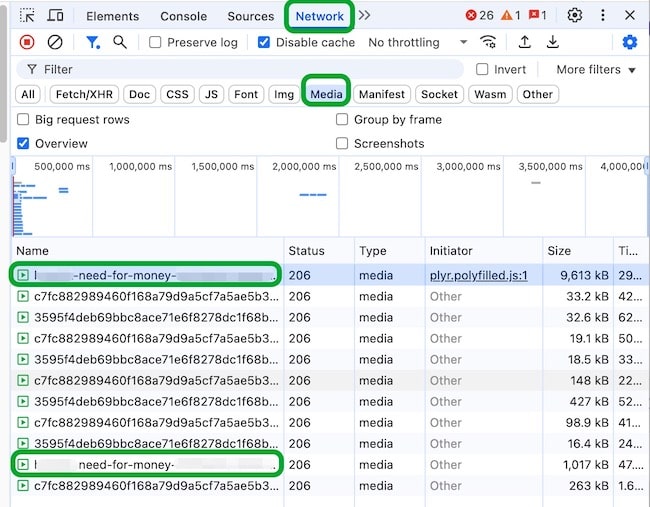
- Open the Network panel and select the Media filter.
- Refresh the page and play the video at the specified resolution.
- In the list of captured files in DevTools, locate the correct title and double-click to open it.
- Click the three dots in the bottom right corner and select Download.
![]()
Pro tip for 2026
In modern TNAFlix pages, the correct stream is often:
- Not the largest file
- Not the first media
- But the stream that continues updating, active continuously during playback
Legal Notice
Downloading videos may be subject to copyright law and platform terms of service. Users should ensure they have permission to download or store any content before doing so.
Is TNAFlix Video Download Safe and Legal?
Authoritative security check sites like VirusTotal, Norton, ScamAdviser, and ScamVoid have confirmed that TNAFlix is safe. However, I believe it still poses security risks. Be careful not to click on ads that might trigger malware downloads or fill in your critical personal information.
Final Recommendation (2026)
- Best overall: Desktop downloader (most stable, highest success rate)
- Fastest option: Online tools (quick but inconsistent)
- Most control: DevTools method (advanced users)
- Easiest: Browser extensions (but least reliable)
Free Download Windows 11/10 Free Download macOS 10.15 or later

Chloe LEE is good at explaining and solving complex technology problems to her readers. Since joining iFunia Studio, she has focused on writing articles about video and DVD software, and how-to tutorials.
Comments (0)
Leave a Reply