


How to Download Brightcove Videos (2026 Guide)




Trying to download a Brightcove video with popular downloader, extension and online sites? I know the frustration of getting a "No media detected" message, a video with only audio, or download error.
Don't worry - it’s not your computer, and you didn't do anything wrong.
Unlike years ago, Brightcove videos no longer expose direct MP4 files, except for some commercial videos, most of the time, Brightcove player automatically splits every video into hundreds of tiny 2-second streaming fragments so your bowser only load temporary HLS (M3U8) streams after playback starts. In some cases, DRM protection prevents standard download tools from detecting anything at all.
That’s why one Brightcove downloader may work perfectly on one website and fail entirely on another.
In this guide, we tested multiple Brightcove video download methods - including browser extensions, desktop downloaders, developer tools, and stream-based solutions - to see which ones still work in 2026.
 iFunia YouTube Downloader
The Best Brightcove Video Downloader
- Download videos powered by Brightcove, JW Player and more
- Download videos from over 10000+ sites like YouTube, Facebook, Instagram, etc.
- Batch download Brightcove videos and other videos with high speed
- Download video content in SD, HD 1080p, 2K, 4K and even 8K
- Also convert online videos directly to MP3 audios
- Rip entire YouTube playlist in one go
- Easy to use
 Free Download macOS 10.13 or later
  Free Download Windows 10 or later
How We Tested Brightcove Download Methods
We tested Brightcove video players across multiple types of websites, including:
- News websites
- Marketing landing pages
- Embedded corporate video portals
- Online training platforms
Our goal was not just to download 1 or 2 videos, but to test how to download Brightcove videos under different delivery conditions (MP4, HLS, DRM-protected streams).
During testing, we found that no single method works universally. Success depends entirely on how the video is delivered.
Which Brightcove Download Method Should You Use?
| Type | What You See | Site Type | What Usually Works |
|---|---|---|---|
| Direct MP4 delivery | Simple embedded player | Marketing video page | Browser extension or downloader |
| HLS (M3U8) streaming | No MP4 found, Instead of one video file, the video is split into segments defined in a .m3u8 playlist | News site Brightcove player | Delicated video downloader |
| DRM-protected videos | Download tools fail | Corporate training portal | Usually cannot legally download |
How do I identify a Brightcove video?
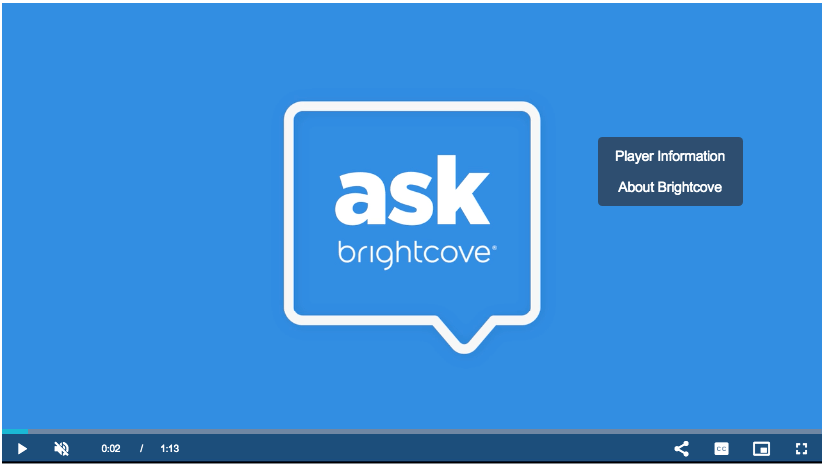
If you right-click or control-click a Brightcove video, you will be presented with two clickable options: Player Information and About Brightcove. Clicking the former will provide you with information like video ID and Brightcove Player version.
Get the Downloadable URLs of Brightcove Videos
If you simply enter the URL of the web page that contains a Brightcove video, most of the downloaders will consider the URL invalid. The instructions below will show you how to manually find Brightcove video URL.
Some Brightcove videos provide the share functionality. You may find the share icon in the progress bar or the top right corner.
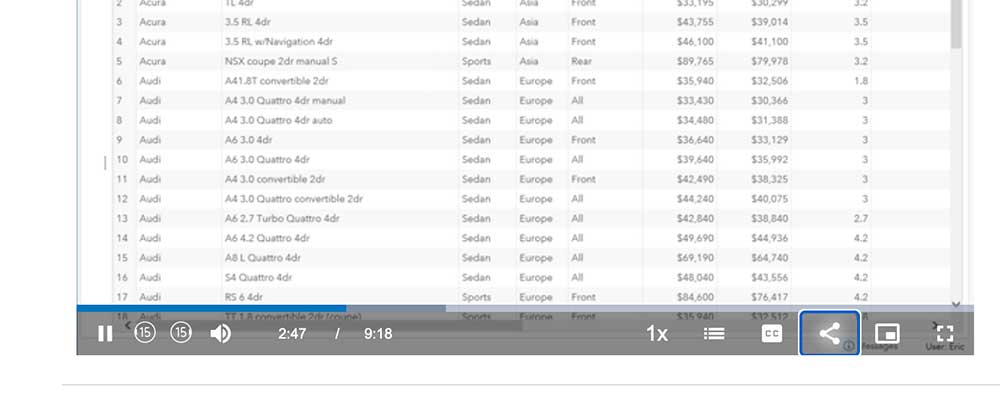
Step 1. Click the share icon.
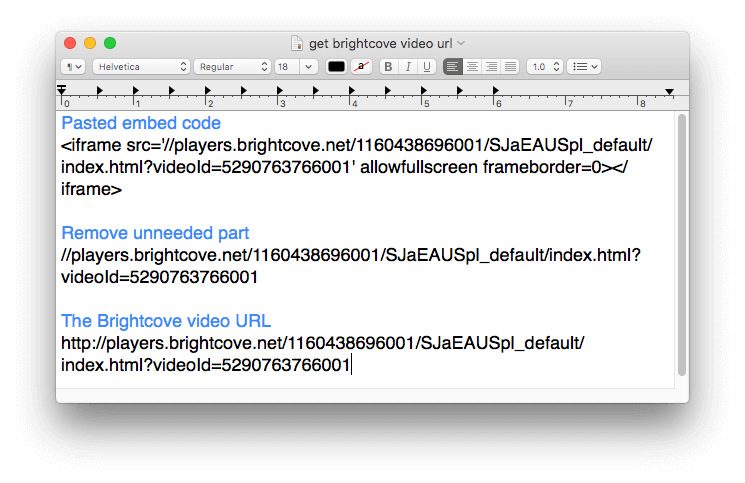
Step 2. Copy the embed code it provides and paste the code in a text editor.

Step 3. Remove everything that is not needed. Add http: in the front, as shown in the screenshot. Now we get the URL we need.
However, some Brightcove videos don’t show the share icon. Fortunately, there is a workaround.
Step 1. Right-click and select Player Information.
Step 2. Copy the Account ID, Player ID and Video ID and paste them in your text editor.
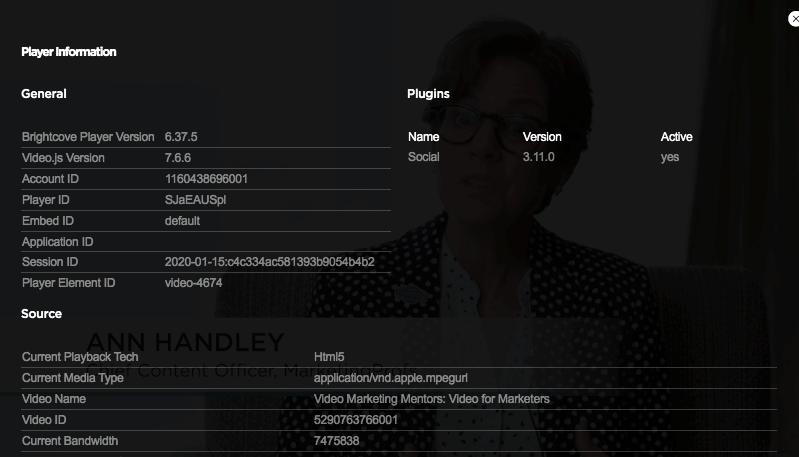
Step 3. Use this template http://players.brightcove.net/your-account-id/your-player-id_default/index.html?videoId=your-video-id. Replace with your video information.
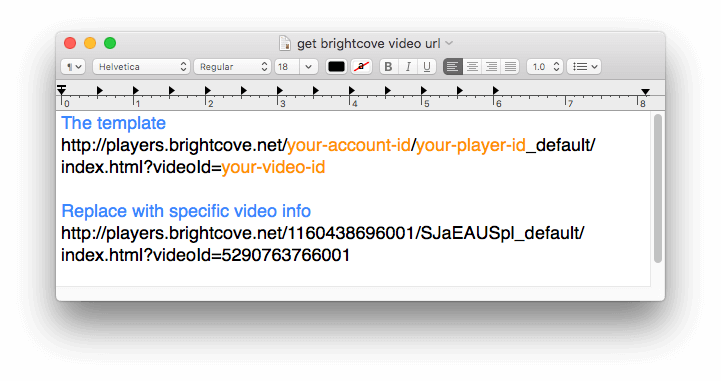
One thing to watch out for: Brightcove's server tokens are time-sensitive. Though links for most videos are stable, for some video, If you copy a link and wait more than 10 minutes to paste it into a downloader, it will cause an expired error, and you'll need to refresh the source web page to generate a new link.
Method 1: Batch Download Brightcove Videos via Desktop App (Mac & Windows)
Applies to: macOS; Windows
If you need to download long-form videos, multiple video links at once, or if browser extensions keep crashing due to your computer running out of temporary memory, switching to a dedicated desktop program like iFunia YouTube Downloader is the most stable approach.
- Quickly download any video from Brightcove
- Download Brightcove videos in bulk
- Save videos from 10000+ sites like YouTube, Twitter, Facebook, Vimeo, Dailymotion, etc.
- Let you choose output format (MP4 & MP3) and video quality levels (from SD to 8K)
- Support downloading whole YouTube playlist
- Provide high quality and high speed
Free Download macOS 10.13 or later Free Download Windows 10 or later
How to use iFunia Video Downloader for Brightcove Streams:
Step 1. Grab the Hosting Page Link: Navigate to the website where the Brightcove video is embedded. Copy the real link according to the method we introduced above.
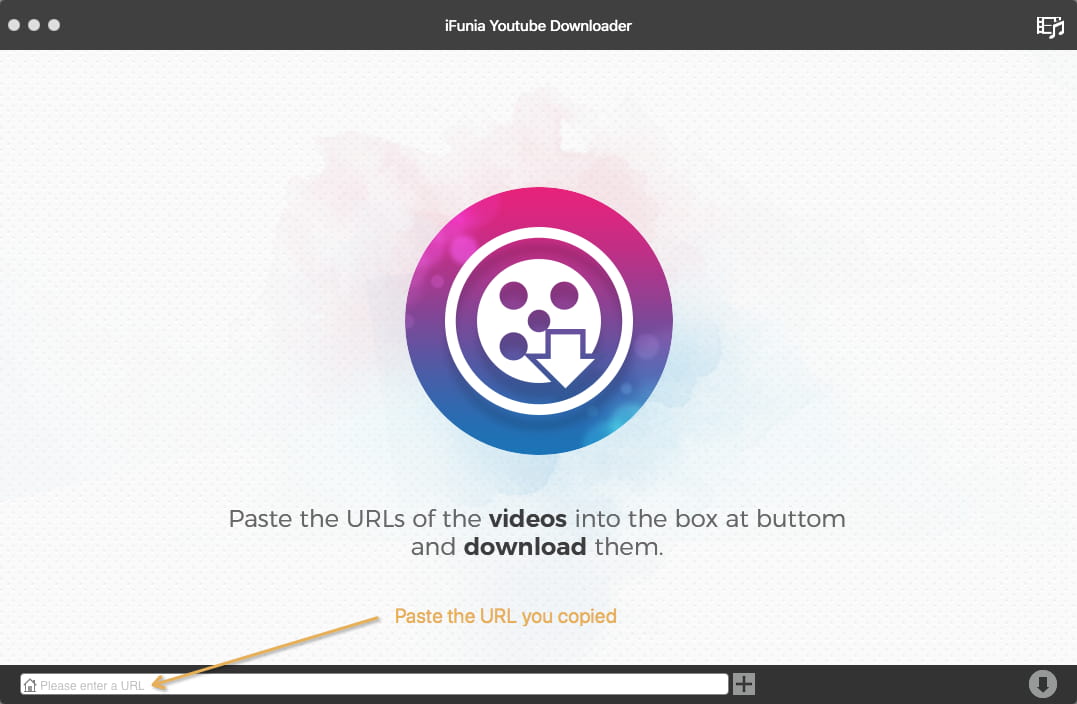
Step 2. Open iFunia Video Downloader on your Mac or PC. Click inside the URL input box and paste your link. To batch download multiple videos from Brightcove, just add URLs one by one.
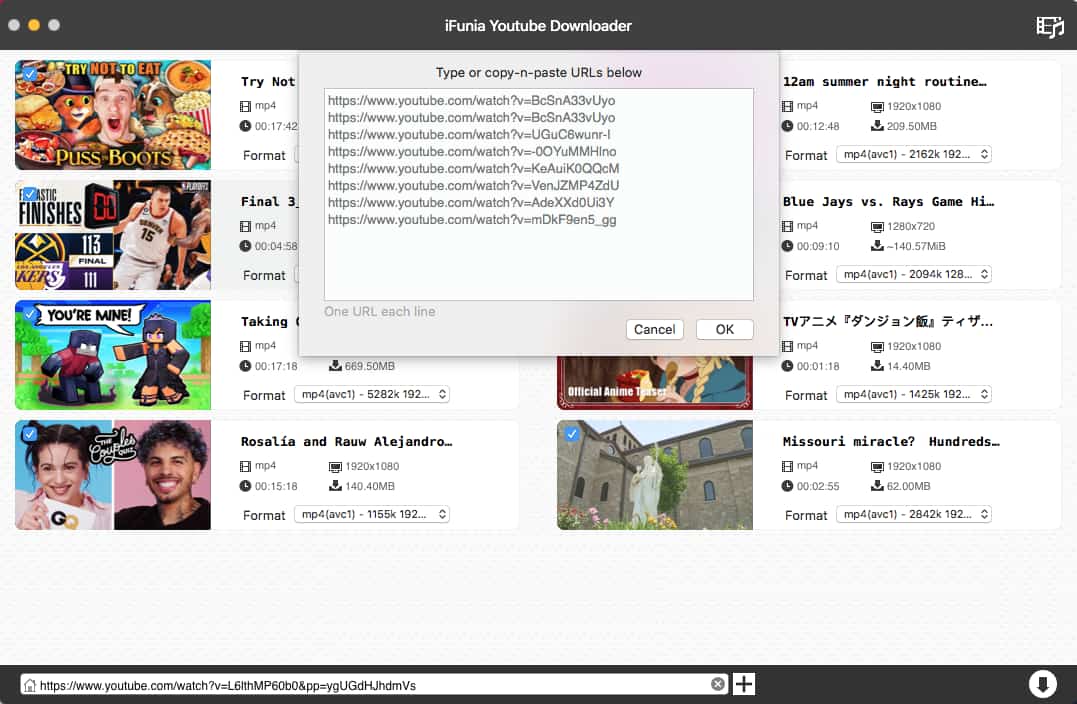
Step 3. Click the + button. The software will read the site’s source code, and analyze all downloadable resources like video, audio and subtitles.
Step 4. Pick Your Resolution Quality and Output Format: Once parsed, click the format dropdown menu. Select MP4 and choose your preferred resolution (such as 4k, 1080p or 720p).
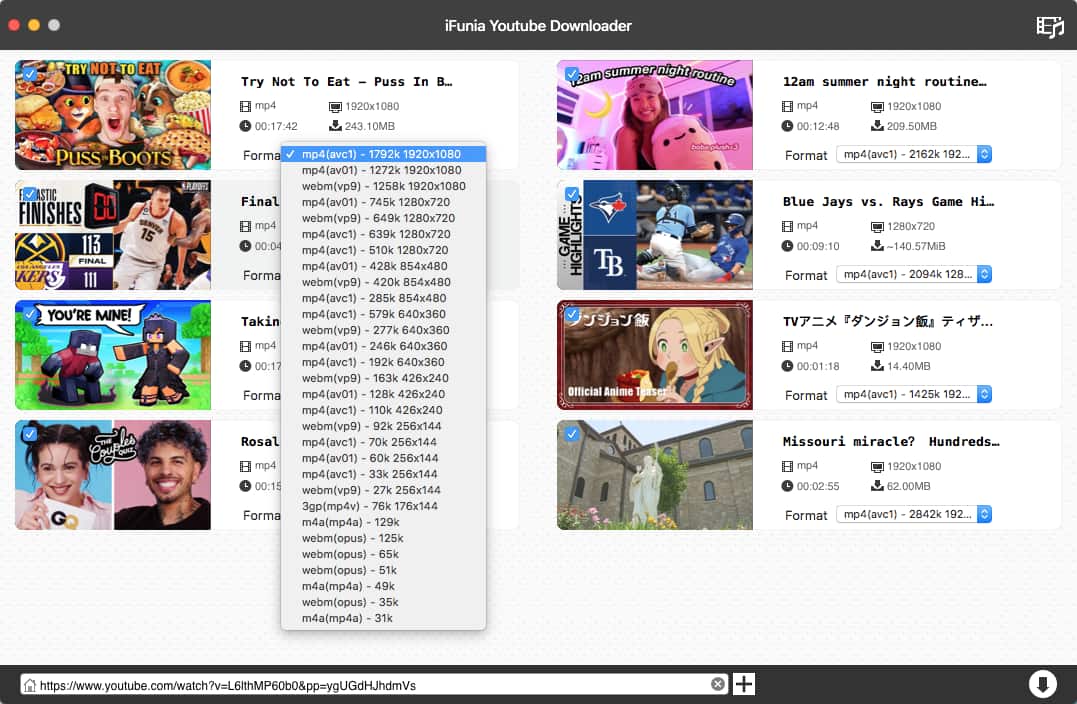
Step 5. Start the Download: Click the Download icon. The software will downloading the added Brightcove videos in bulk.
When testing multiple types of Brightcove videos on our Mac mini M1 setups, we noticed that web extensions often fail forze at 99% if a Brightcove stream runs longer than 30 minutes. While with iFunia it handles long videos with no problem and you don't have to wait to download the videos after it plays.
iFunia use full hardware acceleration, it can download multiple videos or playlist simultaneously, reducing total download times by roughly 82% compared to typical single-stream browser extensions. Also, the software preserved audio sync correctly in every exported file during testing.
Method 2: Download Brightcove Videos Using Chrome Extension
Applies to: Windows, macOS
If the Brightcove player exposes a direct MP4 file, browser extensions can work well.
In our tests, extensions like Video DownloadHelper worked reliably on marketing pages and simple embedded Brightcove videos.
However, we also found limitations:
- On some news websites, the Video DownloadHelper initially showed "No media detected" until playback started for 3 minutes.
- The highest download quality is 1080p
- Certain videos never exposed MP4 at all
- For most of the videos, Video DownloadHelper will need to assembling video fragments, the download process will pause at 99% for a long time, and sometimes it just frozen. This is normal as the extension needs to merge the separate audio and video tracks into a final MP4 file.
Step 1. Go to the Chrome Web Store. Navigate to the search box at the top right part of the web page and enter Video Downloader Plus. Hit Enter.
Step 2. From the results, find Video Downloader Plus offered by downloader_plus and click the Add to Chrome button next to it. A message box will pop up. Click Add extension.
Step 3. Once it’s successfully installed in your Chrome, its icon will appear in the toolbar.
Step 4. Open the web page containing your Brightcove video and press Play. You must let the video run for at least 3–5 seconds so the browser can actively request the streaming fragments from Brightcove's server.
Step 5. Click the said icon in Chrome’s toolbar. In the window that shows up, you will find a list of videos with different quality levels. Choose the Highest Resolution:Filter out ads and audio tracks. You will see a list of available files. Ignore anything that is only a few kilobytes. Look for the entry labeled HLS or DASH with the largest file size or a high-definition resolution label like 1920x1080.
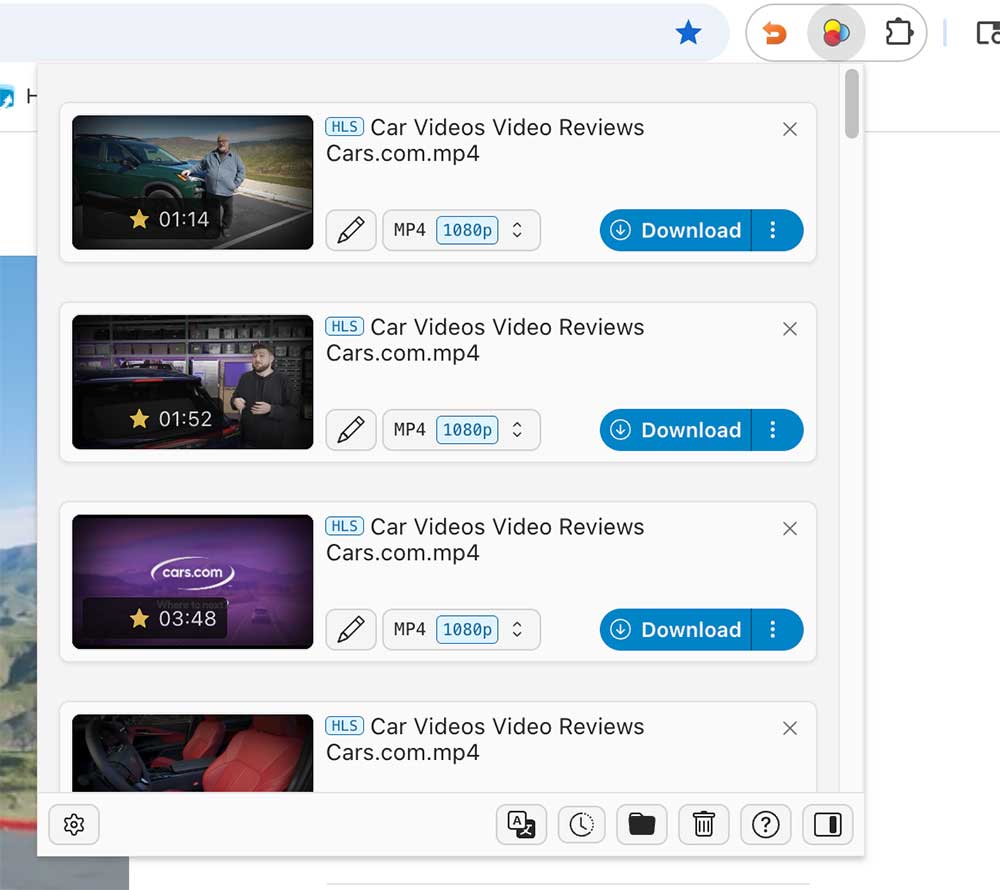
Step 6. When it finishes preparing, click the Download button that appears.
Method 3: How to download Brightcove video in Firefox
Applies to: Windows, macOS
Brightcove video download through Firefox plugin is also possible. Extensions like Flash Video Downloader do a good job of saving video from Brightcove Player.
Step 1. In Firefox, go to https://addons.mozilla.org/en-US/firefox/. Type Flash Video Downloader into the Find add-ons box at the top right corner.
Step 2. From the results, click Flash Video Downloader by Donald. Click the Add to Firefox button. In the pop-up message, click Add.
It will immediately install the extension in your Firefox. You can now find its icon in the toolbar.
Step 3. Go to a web page that contains the Brightcove video you want to save. Play the video.
Step 4. Click the extension’s icon in the toolbar. In the Found media window, from the available quality levels, select the desired one, say, 720, MP4. Click the Convert button next to your option.

Step 5. Click the Download FVD Downloader Module button that appears. Install the module. Restart your browser.
Step 6. Repeat step 3 and 4. Now you can download the video from Brightcove.
Method 4: How to download a Brightcove video with IDM
Applies to: Windows 7 and later
If you are not a fan of browser extension, you can also use software to download Brightcove videos. Internet Download Manager or IDM can help you download video from Brightcove.
Step 1. Install IDM on your Windows PC. Launch it.
Step 2. Go to the page with the desired Brightcove video on it. Play the video.
Step 3. Click the Download this video button that appears.
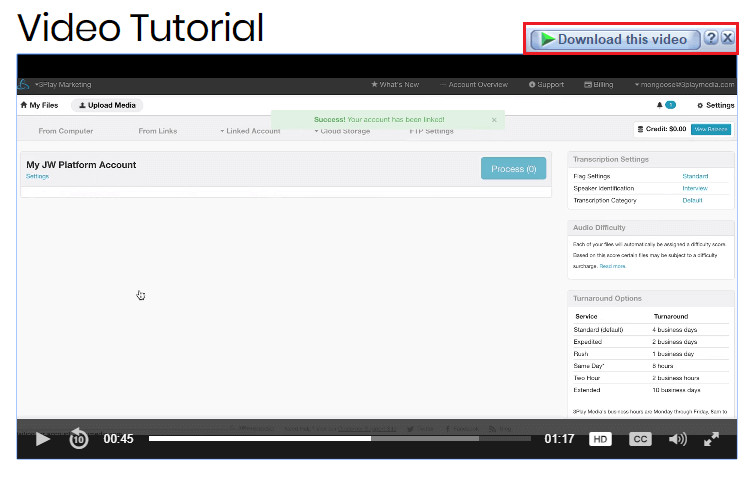
Step 4. In the pop-up dialog box, choose a folder to store the downloaded video.
Step 5. Click the Start Download button.
Method 5: How to download video from Brightcove online
Applies to: Windows, macOS, Android and more
If you are looking for a way to download Brightcove video online, there are a few web-based services that can help. When it comes such services, there is a big advantage. With them, you don’t need to install any software or extension.
#1 savethevideo.com
It’s a website that helps users save online videos. A desktop version is also available.
Step 1. Go to https://www.savethevideo.com/downloader
Step 2. Copy URL of the page where the Brightcove video is embedded.
Step 3. To download video from Brightcove online using the site, paste the URL into the Enter the video link here box. Click Download.

Step 4. It will jump to the Playlist section and list the Brightcove video URL it has found. Click the Download button.

Step 5. Now you are presented with three tabs: Download, Convert and Subtitles/CC. Under the Download tab, click the Download video button to save the Brightcove video.
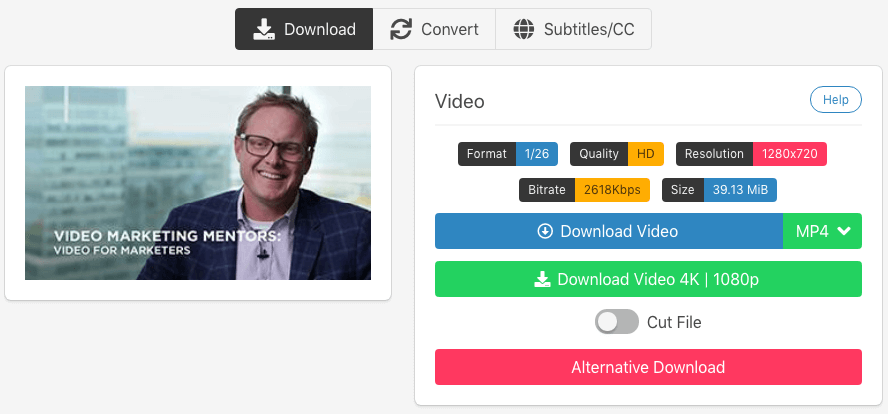
To select a video quality level, click the dropdown icon and select. During testing, for most of the videos it grabbed videos successfully but downloaded silent MP4s with no audio track because the audio stream was delivered separately.
#2 catchvideo.net
Here’s another online tool to download Brightcove video.
Step 1. Visit https://catchvideo.net/.
Step 2. Copy URL of the web page that contains the video you need.
Step 3. Paste the URL into the Paste your link or search for a keyword here box. Click the Catch button.
Step 4. Once it finishes analyzing the URL, you can choose the video quality you need, say, MP4 – (1280×720). Right-click or control-click the Download button and choose Save Link As, or Save Link & Target As, or a similar option.
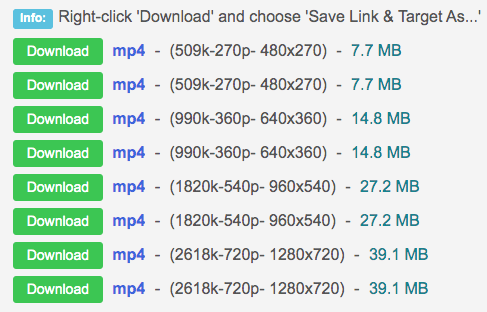
In addition, the site also provides you with video information like title, duration and thumbnail.
#3 keepv.id
With keepv.id and most other online downloading sites, things can be a little more complicated.
You need to manually get Brightcove video URL first.
Step 1. Go to https://keepv.id/.
Step 2. Paste the URL into the Paste video link & hit GO box. Click the GO button.
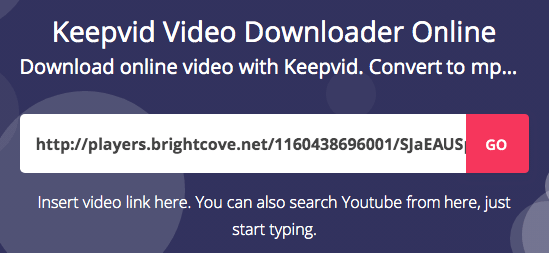
Step 3. Wait for a while. Now you will be able to find the download option. Find the video quality you need. Right-click the red Download button and choose Save Link As or a similar option.
Why Some Brightcove Videos Cannot Be Downloaded
Not all Brightcove videos are accessible. If you successfully download a file but it plays back with full audio but a completely black screen, you have run into an encrypted stream protected by DRM (Digital Rights Management) like Widevine or FairPlay. https://studio.support.brightcove.com/general/content-protection/overview-digital-rights-management-drm-video-cloud.html
Major streaming sites, educational institutions, and corporate enterprise use DRM to prevent unauthorized downloading.
No standard video downloader app or browser extension on the market can decrypt a DRM-protected Brightcove video file. If an online site promises to do so, it is likely a scam.
Conclusion
Above are the easy ways to download Brightcove video on Mac, Windows, Android, etc. They can also be used to save videos from popular video-sharing sites and social networking platforms. For occasional video saving, online apps are convenient to use.
In general:
- Browser extensions worked best for simple MP4 delivery
- YouTube Downloaders handle M3U8 streams more reliably
- DRM-protected videos could not be downloaded in any tested method
Free Download Windows 11/10 Free Download macOS 10.15 or later
Disclaimer
The methods in this article are for personal use only. Before downloading, you must comply with copyright laws and obtain permission from the owner for protected content. The author is absolutely against the downloading of unauthorized video/audio files or using them for commercial gain.

Chloe LEE is good at explaining and solving complex technology problems to her readers. Since joining iFunia Studio, she has focused on writing articles about video and DVD software, and how-to tutorials.
Comments (0)
Leave a Reply